Remove & Install Internet Explorer 11 on Windows 10.
Method 1.
1. The first method to uninstall or install Internet Explorer in Windows 10, is to navigate in Control Panel > Programs and Features > Turn Windows Features on or off.

2. In Windows features options:
a. Uncheck the checkbox Internet Explorer 11 (to remove)
b. Check the checkbox Internet Explorer 11 (to install)

3. Close all open windows and restart your PC.
Method 2.
![image_thumb[2]_thumb](https://www.repairwin.com/wp-content/uploads/2019/02/image_thumb2_thumb-1.png "image_thumb[2]_thumb") menu > Settings
menu > Settings  > Apps > Optional features
To Uninstall Internet Explorer from App & features:
a. Click at Internet Explorer 11 and click Uninstall.

b. When the uninstall process is complete, restart your computer.
To Install Internet Explorer in Windows 10:
(Go to Start -> Settings > Apps > Optional features)
1. Press the Add feature + button.
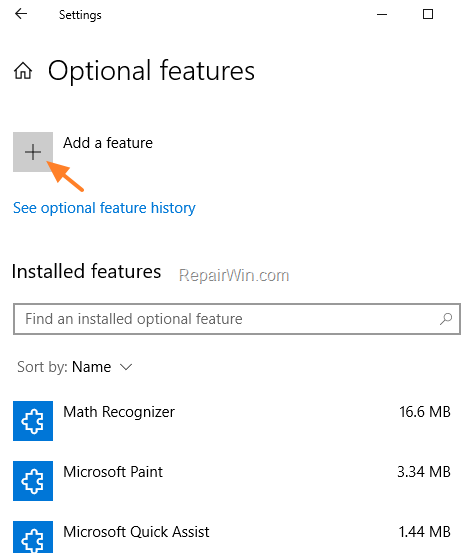
2. Search for (or locate in the list) the Internet Explorer 11 and click Install
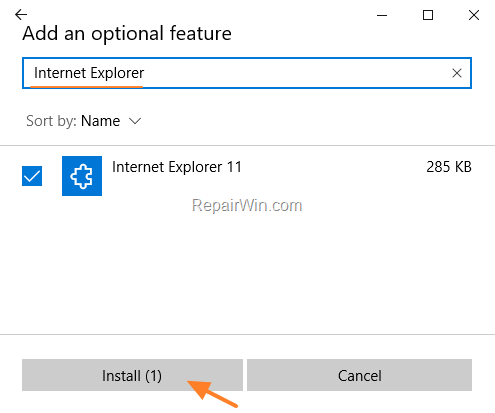
3. When the installation is complete, restart your computer and you're done.
