Stop Internet Explorer To Edge Redirection In Windows 10.
1. Disable IE redirect setting in Edge browser.
- Open the Edge browser.
- Type “edge://settings/defaultbrowser” in the address bar and press Enter.
- Select “Never” from the “Let Internet Explorer open sites in Microsoft Edge” dropdown menu.
- Settings all saved automatically.
- Restart the Edge browser.

2. Disable extensions in IE to stop redirect to Edge
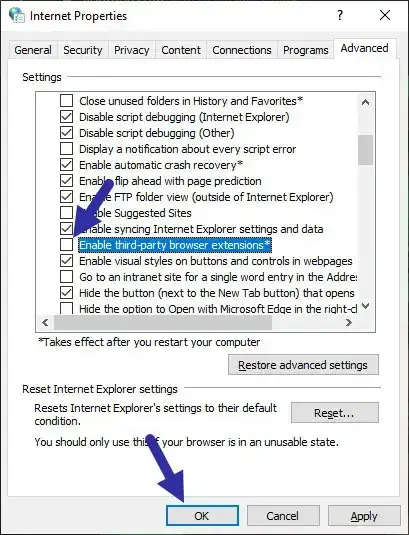
Internet Explorer uses special a helper object to redirect from IE to Edge. By disabling the third-party extensions feature, you can stop this behavior.
- Open the Run dialog box with the “Windows key + R” shortcut.
- Type “inetcpl.cpl” and click “Ok.”
- Go to the “Advanced” tab.
- Uncheck the “Enable third-party browser extensions” option.
- Click “Apply.”
- Click “Ok” to save changes.
3. Edit registry to stop Internet Explorer to Edge redirect
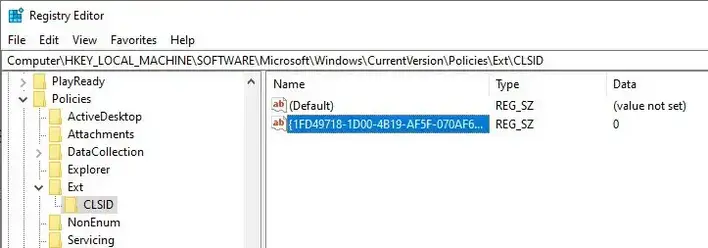
You can stop Internet Explorer to Edge redirect by disabling the IEToEdge Browser Helper Object (BHO) from the registry editor. Here’s how.
- Open the registry editor.
- Paste the below path in the address bar and press Enter.
HKEY_LOCAL_MACHINE\SOFTWARE\Microsoft\Windows\CurrentVersion\Policies\Ext\CLSID - On the right panel, double-click on the “{1FD49718-1D00-4B19-AF5F-070AF6D5D54C}” value.
- Change the Value Data from “1” to “0”.
- Click on the “Ok” button.
- Close the registry editor.
- Restart Windows 10.
HKEY_LOCAL_MACHINE\SOFTWARE\Microsoft\Windows\CurrentVersion\Explorer\Browser Helper Objects\{1FD49718-1D00-4B19-AF5F-070AF6D5D54C}
Set NoInternetExplorer to 1
HKEY_LOCAL_MACHINE\SOFTWARE\WOW6432Node\Microsoft\Windows\CurrentVersion\Explorer\Browser Helper Objects\{1FD49718-1D00-4B19-AF5F-070AF6D5D54C}
Set NoInternetExplorer to 1
HKEY_CURRENT_USER\SOFTWARE\Microsoft\Edge\IEToEdge
(or)
HKEY_LOCAL_MACHINE\SOFTWARE\Microsoft\Edge\IEToEdge
Set RedirectionMode
Value type : REG_DWORD
Data : 0 (Never), or 1 (Incompatible sites only), or 2 (Always)
4. Rename the Edge folder stop Internet Explorer to Edge redirect
