Remove & Install Internet Explorer 11 on Windows 10.
Method 1.
1. The first method to uninstall or install Internet Explorer in Windows 10, is to navigate in Control Panel > Programs and Features > Turn Windows Features on or off.
2. In Windows features options:
a. Uncheck the checkboxInternet Explorer 11 (to remove)
b. Check the checkboxInternet Explorer 11 (to install)
3. Close all open windows and restart your PC.
Method 2.
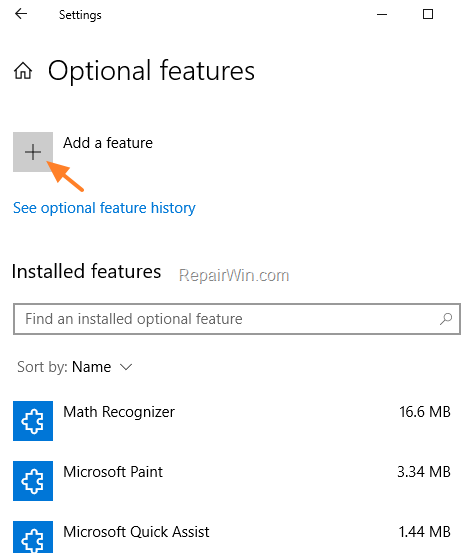
The second method to remove Internet (or to add Internet Explorer), in Windows 10 is to go to the Start menu > Settings > Apps > Optional features
To Uninstall Internet Explorer from App & features:
a. Click at Internet Explorer 11 and click Uninstall.
b. When the uninstall process is complete, restart your computer.
To Install Internet Explorer in Windows 10:
(Go to Start -> Settings > Apps > Optional features)
1. Press the Add feature+ button.
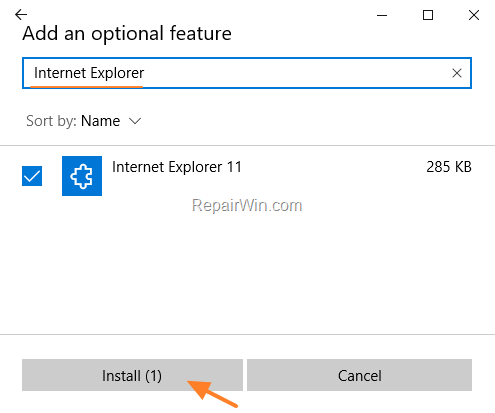
2. Search for (or locate in the list) the Internet Explorer 11 and click Install
3. When the installation is complete, restart your computer and you're done.
Stop Internet Explorer To Edge Redirection In Windows 10.
1. Disable IE redirect setting in Edge browser.
Open the Edge browser.
Type “edge://settings/defaultbrowser” in the address bar and press Enter.
Select “Never” from the “Let Internet Explorer open sites in Microsoft Edge” dropdown menu.
Settings all saved automatically.
Restart the Edge browser.
2. Disable extensions in IE to stop redirect to Edge
Internet Explorer uses special a helper object to redirect from IE to Edge. By disabling the third-party extensions feature, you can stop this behavior.
Open the Run dialog box with the “Windows key + R” shortcut.
Type “inetcpl.cpl” and click “Ok.”
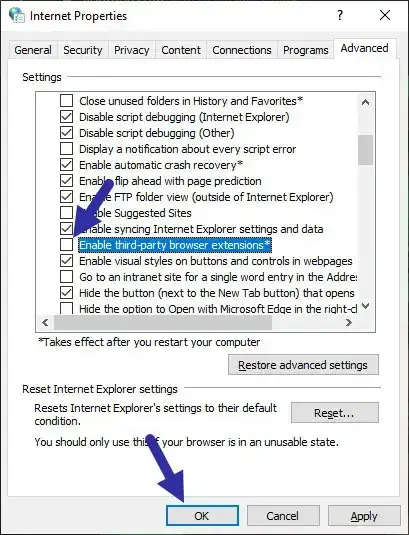
Go to the “Advanced” tab.
Uncheck the “Enable third-party browser extensions” option.
Click “Apply.”
Click “Ok” to save changes.
3. Edit registry to stop Internet Explorer to Edge redirect
You can stop Internet Explorer to Edge redirect by disabling the IEToEdge Browser Helper Object (BHO) from the registry editor. Here’s how.
Open the registry editor.
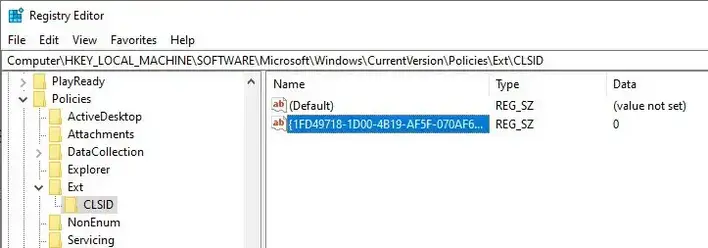
Paste the below path in the address bar and press Enter. HKEY_LOCAL_MACHINE\SOFTWARE\Microsoft\Windows\CurrentVersion\Policies\Ext\CLSID
On the right panel, double-click on the “{1FD49718-1D00-4B19-AF5F-070AF6D5D54C}” value.


![image_thumb[2]_thumb](https://www.repairwin.com/wp-content/uploads/2019/02/image_thumb2_thumb-1.png "image_thumb[2]_thumb") menu > Settings
menu > Settings  > Apps > Optional features